


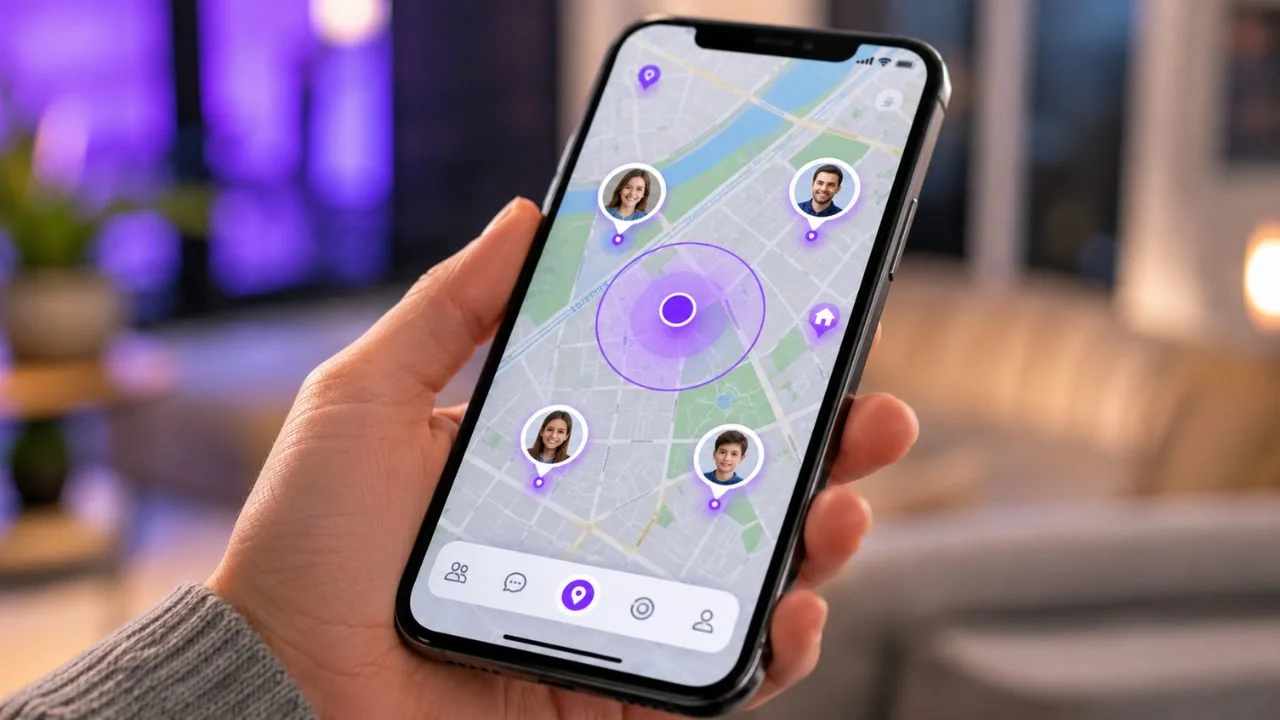
You open Life360 to check where a family member is, but instead of seeing their exact location pin, you notice a large purple bubble covering an area of the map. This can be confusing, especially when you are used to seeing precise addresses, driving routes, and real-time movement.
So, what does the purple bubble mean on Life360? In most cases, it means the person has activated the Life360 Bubble feature. This temporarily hides their precise location and shows Circle members only the general area where they are located.
The purple bubble does not normally mean that the person has turned off their phone, disabled GPS, deleted the app, or left your Life360 Circle. Instead, it is an optional privacy feature that limits exact location sharing for a selected period.
However, Life360 uses purple elements in several parts of its interface. A large purple area, a small purple map icon, and purple history dots can have different meanings. Understanding where the purple symbol appears will help you interpret it correctly.
What Does the Purple Bubble Mean on Life360? Quick Answer
The purple bubble on Life360 usually means that a Circle member is sharing an approximate location instead of their exact position. The person remains visible within a general geographic area, but other members cannot see the specific street, building, or route they are taking.
Life360 officially calls this feature Bubbles. When someone creates a Bubble, they select a location radius and a duration. Their profile remains visible inside the Bubble, while their exact GPS position and detailed driving information are temporarily hidden from the Circle.
The feature is designed to offer limited privacy without completely disabling Life360 location sharing. Messaging, Check-Ins, safety tools, and certain emergency features can remain available while the Bubble is active.
Therefore, seeing a purple Bubble does not automatically indicate suspicious activity or a technical problem. It simply tells you that the person has intentionally chosen to share their general location rather than continuous, precise movement.
Why Does a Purple Bubble Appear on the Life360 Map?
A purple Bubble appears when someone in your Life360 Circle activates the Bubble feature from their profile. The person can choose how large the approximate location area should be and how long the Bubble should remain active.
People may create Bubbles when meeting friends, shopping, attending an event, visiting a private location, or simply taking a temporary break from exact location tracking. The feature allows them to maintain some independence without disappearing from the family map.
When the Bubble begins, other Circle members are informed that the person is using an active Bubble. This means the approximate location is not usually caused by Life360 secretly hiding information or failing to receive GPS data.
The person’s profile may appear inside a broad purple area instead of sitting on one precise map point. The Bubble communicates that the person is somewhere within that selected area, but it does not reveal exactly where inside the area they are located.
What Can Circle Members See Inside a Life360 Bubble?
When a Life360 Bubble is active, Circle members can see the general geographic area in which the person is located. They cannot normally see the person’s exact address, building, street position, or detailed movement within the Bubble.
The member’s avatar may remain visible in connection with the purple area, but the avatar should not be treated as a precise location pin. The Bubble is intended to provide general reassurance rather than minute-by-minute tracking.
Circle members can also see that the person is intentionally using the Bubble feature. Life360 does not present the Bubble as ordinary real-time location sharing, so family members are not misled into believing that the displayed point is exact.
According to Life360, exact location and driving information are not shared while the person remains inside an active Bubble. Precise sharing returns after the Bubble ends, is popped, is burst, or the member moves outside its selected range.
Does the Purple Bubble Mean Location Sharing Is Paused?
The purple Bubble does not mean location sharing has been completely paused. It means that the level of location detail has been reduced from precise tracking to approximate location sharing.
When someone pauses location sharing completely, Life360 can display a message such as “Location Sharing Paused.” If phone location permissions are disabled, the app can also show a separate warning explaining that location permissions are off.
A person who is logged out may be identified with a “Logged out of Life360” message. When the app loses its connection, the person’s map icon may become greyed out rather than appearing as a normal active purple Bubble.
These differences matter because a Bubble is an intentional privacy setting, while a paused location, lost connection, disabled permission, or dead phone can prevent the app from receiving normal location updates altogether.
Is the Purple Bubble Caused by Poor GPS Accuracy?
A purple Bubble is not normally created automatically because of weak GPS. The official Bubble feature must be activated by a Circle member, and it is designed to replace their exact position with a selected approximate area.
Poor GPS accuracy can still cause a Life360 location to look delayed, jump between areas, remain stuck, or show an unusually broad accuracy zone. Buildings, weak cellular service, battery restrictions, and incorrect phone permissions can affect location updates.
Some unofficial explanations online describe every purple circle as a GPS accuracy problem. That interpretation can be misleading because Life360 also uses purple for its Bubble feature and for certain history controls within the app.
Look for labels such as “Active Bubble” or a notification showing that a Circle member created a Bubble. If no Bubble label appears and the location seems outdated, check the member’s internet connection, phone settings, battery mode, and GPS permissions instead.
Purple Bubble vs. the Small Purple Map Icon
A large purple area around a Circle member is different from the small purple map icon found near the lower-right area of some Life360 screens. The large area generally represents approximate location sharing through Bubbles.
The small purple map icon is connected with driving and location history. Tapping it can open more detailed information about a person’s recent trip, route, or movement history rather than activating a privacy feature.
Life360’s current support instructions state that users can select a Circle member and tap the small purple map icon to view more detailed history for their most recent drive or trip.
The location of the purple symbol is therefore important. A large zone covering part of the map may indicate an active Bubble, while a small clickable purple icon is more likely a navigation button for historical activity.
Purple Bubble vs. Purple Dots in Location History
Purple or colored dots may also appear when viewing a person’s daily location history. These dots represent moments when Life360 received or updated location information during the selected day.
History dots help users move through different timestamps and see how a Circle member’s reported location changed. They do not necessarily mean that the person activated a Bubble at every point shown.
Life360 explains that the dots displayed in Daily History indicate when the application updated the device’s location. Users can select a dot or move the timeline slider to view the associated time.
If you are already viewing a previous date or trip history, the purple elements are more likely to represent location records or navigation controls. Return to the main live map to confirm whether an active Bubble currently exists.
How Large Can a Life360 Purple Bubble Be?
The person creating a Bubble can adjust its size before activating it. A smaller Bubble offers a more limited privacy area, while a larger Bubble gives the person more freedom to move without revealing their exact position.
Life360 currently allows a Bubble to cover an area of up to 25 miles. This means a large purple zone does not necessarily show poor location accuracy; it may simply reflect the radius selected by the person who created it.
The selected Bubble is centred around the member’s location when it is activated. As long as the person remains within the chosen boundary, their precise movements inside that area are not normally shown to Circle members.
If the person travels beyond the Bubble’s range, the Bubble can end automatically. Life360 can then resume sharing the member’s regular location information with the Circle.
How Long Does a Purple Bubble Last on Life360?
A Life360 Bubble is temporary rather than permanent. When creating one, the user chooses how long they want approximate location sharing to remain active.
The current Life360 Bubble feature allows a duration of up to six hours. The person can choose a shorter period when they only need temporary privacy for a meeting, activity, appointment, or social event.
When the selected time expires, the Bubble ends and exact location sharing resumes, provided the phone is connected and its normal location settings remain enabled. Circle members may receive an update showing that the Bubble is no longer active.
A Bubble may also end before its scheduled expiration if the creator pops it, another member bursts it, an emergency is detected, or the person moves outside its selected geographic range.
How Does Someone Create a Bubble on Life360?
To create a Bubble, the Circle member begins by opening Life360 and tapping their avatar on the map. They then select the option labelled “Create a Bubble” from their map view.
The person uses the available slider to choose the approximate size of the Bubble. After selecting the preferred radius, they continue to the duration settings and choose how long the Bubble should remain active.
Before activation, Life360 explains that Circle members will be able to see that the person is inside a Bubble. However, their exact location and detailed driving information will not be shared during that period.
After confirming the settings, the purple Bubble appears on the Circle map. Menu names or screen positions may vary slightly across Life360 versions, Android devices, and iPhones, but the basic process remains similar.
How Can the Person End Their Purple Bubble?
The person who created the Bubble can end it early by opening their Life360 profile and selecting the active Bubble. They can then choose the option to pop or end it.
After the Bubble is popped, the Circle receives an update and the person’s normal location sharing becomes available again. The exact position may take a short time to refresh depending on the device’s connection.
The Bubble may also end automatically if the creator leaves its geographic boundary. This prevents the Bubble from continuing to display the original approximate area after the person has travelled somewhere outside it.
When exact location does not return after the Bubble ends, the member should open Life360, confirm that location sharing is enabled, and check that the phone has a stable internet and GPS connection.
Can Another Circle Member Burst the Purple Bubble?
Life360 allows Circle members to burst an active Bubble when they are concerned about the person’s safety. Bursting the Bubble ends the approximate location mode and reveals the creator’s updated location.
To do this, a Circle member can select the active Bubble or the creator’s avatar, open the Bubble information, and choose the “Burst Bubble” option. The person must then confirm the action.
Life360 notifies the Circle when a Bubble has been burst. Therefore, another person cannot normally burst it secretly without the action being reflected through the app’s Bubble notifications.
The feature is intended for genuine safety concerns rather than routine monitoring. Families should agree on when bursting a Bubble is appropriate so that the privacy option does not become a frequent source of conflict.
What Happens During a Crash or Emergency?
Life360’s safety systems can automatically burst an active Bubble when a car crash or qualifying emergency is detected. This allows the Circle to receive more useful location information during a potentially serious situation.
The automatic safety response is one reason Bubbles differ from completely turning off location sharing. A user can receive temporary privacy while keeping compatible emergency and communication features available.
The exact emergency tools available may depend on the user’s country, device, settings, and Life360 membership. Users should review the features included in their own account rather than assuming every safety service is available everywhere.
Although an automatic Bubble burst can improve location visibility, Life360 should not replace emergency services. Anyone facing immediate danger should contact the appropriate local emergency provider rather than relying only on an app notification.
Can You Check In While Using a Life360 Bubble?
A person can use Life360’s Check-In feature while their Bubble is active. A Check-In sends an intentional location update to members of the selected Circle.
This can be helpful when someone wants privacy during an activity but also wants to reassure family members that they have reached a safe destination. It provides information without requiring constant monitoring throughout the entire visit.
A Circle member can usually tap the Check-In button from the map and select a nearby location. The Circle then receives a notification containing the location information shared through the Check-In.
Using Check-In does not necessarily mean that the person was hiding something before. It is simply one of the tools available for balancing independence, communication, and family safety while using approximate location sharing.
What Happens to Location History During Bubble Time?
Detailed Location History may not show the member’s individual movements while they remain inside an active Bubble. This is consistent with the feature’s purpose of hiding precise movement within the selected area.
Someone reviewing the member’s history later may therefore notice missing route details or limited information covering the Bubble period. This gap does not automatically mean the application stopped functioning.
Life360 states that a member’s Location History or Driver Report will not include detailed information during Bubble time unless the member moves outside the Bubble.
Once the Bubble ends, new location and driving activity can begin appearing normally again. Previous hidden movements inside the Bubble are not necessarily added to the visible history after precise sharing returns.
Does Life360 Show Driving Information Inside a Bubble?
Detailed driving information is generally hidden while a member is inside an active Bubble. Circle members may not see the precise road, route, destination, speed information, or individual driving events associated with movement inside that area.
This is important because the Life360 Bubble feature limits more than the address displayed on the map. It can also reduce the detailed movement information that would normally appear during location and driving tracking.
When the user exits the Bubble’s geographic range, the Bubble may end and normal driving information can resume. The Circle may then be able to view updated trip or movement information depending on its membership and settings.
If driving information remains unavailable after the Bubble ends, the member should confirm that the required physical activity, motion, precise location, and background permissions are enabled on their phone.
Why Do People Use the Life360 Bubble Feature?
Some families use Life360 for reassurance, emergency awareness, arrival alerts, and coordination. However, continuous exact location tracking can feel uncomfortable when every short trip or movement is visible.
Bubbles provide a middle option between full tracking and completely turning off location sharing. A family member can remain within a visible general area while keeping their individual movements private for a limited period.
Teenagers may use a Bubble while spending time with friends, while adults may activate one during appointments, shopping trips, surprise planning, personal meetings, or other situations where exact tracking is unnecessary.
The healthiest use of this feature depends on communication. Circle members should discuss reasonable boundaries, safety expectations, Check-Ins, and situations in which someone may burst a Bubble before disagreements occur.
Does a Purple Bubble Mean Someone Is Hiding Their Location?
Technically, the Bubble hides a person’s precise location, but that does not prove that they are acting dishonestly. Privacy and secrecy are not always the same thing.
The person remains visible within an approximate area, and the Circle is told that the Bubble has been activated. This makes the feature more transparent than silently turning off GPS or disconnecting the phone.
There are many ordinary reasons someone may not want every movement displayed. Adults, teenagers, partners, and relatives can all value personal space while still agreeing to share general safety information.
Instead of assuming the worst, ask the person why they activated the Bubble and discuss the family’s expectations. A calm conversation is usually more helpful than treating every privacy setting as evidence of misconduct.
Can a Life360 Admin Disable the Bubble Feature?
A Life360 Circle Admin can control whether members are allowed to use Bubbles. The setting is managed separately for the Circle through its management options.
An Admin can open Life360 settings, select Circle Management, and look for the Bubble access controls. They can then turn Bubble access on or off for members of that Circle.
Disabling the feature prevents members from creating new Bubbles in that Circle. However, Life360 remains an opt-in location-sharing service, and individuals can still control certain phone and account permissions.
Removing Bubble access may reduce privacy and create tension if it is done without discussion. Families should consider whether disabling the feature is genuinely necessary for safety or simply being used to increase monitoring.
What Should You Do If the Purple Bubble Appears Unexpectedly?
First, tap the purple area or the person’s avatar and look for an “Active Bubble” label. If the Bubble is active, the app should normally provide information showing that approximate location sharing has been enabled.
Next, check whether the purple object is actually a small map icon, a Daily History dot, or a saved Place boundary. Life360 uses map circles and purple interface elements for different purposes, so their position can change the meaning.
If the purple area appears frozen, incomplete, or unrelated to an active Bubble, update Life360 and confirm that the phone has a stable cellular or Wi-Fi connection. Closing and reopening the app may also refresh the map.
Life360 recommends using the current app version, allowing precise location access, keeping Wi-Fi available, disabling restrictive power-saving modes, and avoiding VPN use when location accuracy is poor.
How to Fix Incorrect or Outdated Life360 Locations
Begin by confirming that the Circle member is logged into Life360 on only one device. Using the same account across multiple devices can interfere with consistent location reporting.
The phone should be switched on, connected to reliable cellular data, and permitted to use location services in the background. Android users should enable precise location, while iPhone users should allow the required continuous location access.
Battery-saving features, data-saving settings, airplane mode, VPN connections, security applications, and restricted background activity can prevent Life360 from updating correctly. The exact setting names vary by device.
When the settings appear correct but the app still behaves incorrectly, use Life360’s refresh procedure. The official steps involve logging out, closing or clearing the app as instructed, restarting the phone, and logging back in without uninstalling Life360.
Purple Bubble vs. a Life360 Place Circle
Life360 Places are saved geographic areas such as home, school, work, a gym, or a family member’s house. They are used to send notifications when Circle members enter or leave selected locations.
A Place boundary may look like a circle or shaded zone on the map. Unlike a Bubble, it is centred around a saved destination rather than following a person’s temporary privacy selection.
You can usually identify a Place by its name, location marker, or arrival and departure settings. Life360 currently allows Place sizes ranging from approximately 250 feet to two miles.
When a circle stays permanently around a school or home, it is more likely to be a saved Place. When a temporary purple area appears around a person and says “Active Bubble,” it represents approximate location sharing.
Is the Life360 Purple Bubble Accurate?
A Bubble is not intended to reveal an exact position, so it should not be judged using the same standard as a precise location pin. Its purpose is to confirm that someone is generally within a selected area.
The person may be anywhere inside the Bubble. Their profile image should not be used to identify a specific shop, house, building, road, or parking space within the zone.
The reliability of the general area still depends on the device’s GPS information and network connection when the Bubble is created. If the original location information is inaccurate, the Bubble may also appear around an imperfect map position.
For urgent safety concerns, try contacting the person directly or use appropriate emergency options. An approximate Bubble should not be treated as proof that someone is at one exact address.
Final Answer: What Does the Purple Bubble Mean on Life360?
The purple Bubble on Life360 usually means that a Circle member has temporarily chosen to share an approximate location rather than their exact GPS position. Their profile remains connected to a general area, but precise movement is hidden.
The Bubble can be set for a selected radius of up to 25 miles and a duration of up to six hours. It may end early if the person pops it, another Circle member bursts it, the creator leaves the area, or an emergency is detected.
A purple Bubble is different from paused location sharing, a grey connection icon, the small purple history button, Daily History dots, and saved Place boundaries. Looking at the symbol’s location and nearby labels will help you identify it correctly.
Most importantly, the Bubble should be understood as a temporary privacy tool rather than immediate evidence of a tracking problem. Clear expectations and respectful communication can help families use Life360 without creating unnecessary confusion or mistrust.
Frequently Asked Questions
Does a purple Bubble mean someone turned off Life360?
No. An active purple Bubble usually means the person is sharing only their approximate location. Completely stopping location sharing normally produces a different status or warning.
Can you see someone’s exact location inside a Life360 Bubble?
No. Circle members can generally see only the approximate area selected by the person. Exact movement and driving details are hidden while the Bubble remains active.
Can someone secretly create a Life360 Bubble?
Circle members are normally informed that a Bubble has been activated. The feature hides the exact location, but it does not present the approximate area as normal precise tracking.
Can parents burst a Bubble on Life360?
Any Circle member may be able to burst an active Bubble when concerned about safety. The action reveals the updated location and notifies the Circle that the Bubble was burst.
Why is my Life360 purple Bubble not going away?
The Bubble may still be within its selected duration, which can last up to six hours. The creator can pop it early, or users can refresh the app if the Bubble remains after it should have ended.