

How to Add eSIM to iPhone: A Complete Setup Guide
An eSIM lets you activate a mobile plan on your iPhone without inserting a traditional plastic SIM card. It is built into supported iPhone models and can be used for your main number, a second business line or a temporary travel data plan.
Adding an eSIM is usually straightforward, but the exact process depends on your mobile network provider. You may activate it through an eSIM QR code, your provider’s app, automatic carrier activation or a transfer from another phone.
Most users can begin by opening Settings, selecting Cellular, and tapping Set Up Cellular or Add eSIM. Some countries use menu labels such as Mobile Service or Mobile Data, but the available options work in a similar way.
This guide explains how to add eSIM to iPhone using every major activation method. It also covers phone compatibility, Dual SIM settings, international travel and solutions for common eSIM activation problems.
What Is an eSIM on iPhone?
An eSIM, or embedded SIM, is a digital version of a physical SIM card. Instead of placing a removable chip in your iPhone, you download the information required to connect your device to a supported mobile network.
An eSIM performs the same essential job as a physical SIM. It links your phone number and mobile plan to your network provider so that you can make calls, send messages and use cellular data.
Because the eSIM is built into the iPhone, it cannot be physically removed if the device is lost or stolen. It also allows users to store multiple mobile plans and switch between available lines through the Settings app.
The technology can be particularly useful for travellers, business owners and people who maintain separate personal and work numbers. However, eSIM availability still depends on the iPhone model, country and mobile network provider.
Which iPhones Support eSIM?
Apple generally supports eSIM on the iPhone XS, iPhone XS Max, iPhone XR and later compatible models. You also need a mobile network provider that offers eSIM service in your country or region.
An iPhone 13 or later can support two active eSIMs at the same time. Earlier supported models commonly allow one eSIM alongside a physical nano-SIM, although regional and model-specific differences may apply.
iPhone 14 models and later purchased in the United States generally use eSIM activation rather than a physical SIM tray. Some newer models sold in other markets may also be available without a physical SIM tray.
Support differs in China mainland, Hong Kong and Macao, where some iPhones use two physical nano-SIM cards or have different eSIM capabilities. Check your exact model and provider before purchasing or transferring a plan.
What You Need Before Adding an eSIM
First, confirm that your iPhone supports eSIM and that your network provider offers an eSIM plan. A phone with eSIM hardware cannot activate a digital plan when the provider does not support the service.
Connect the iPhone to a stable Wi-Fi network or personal hotspot before beginning. Apple states that an internet connection is normally required to download and activate the eSIM profile, although limited exceptions may apply in some regions.
Update your iPhone to the latest version of iOS it supports. Software updates can include network-provider settings, security improvements and fixes for problems that might interrupt cellular activation.
You may also need a QR code, carrier app, activation link, confirmation code or account login details. Keep your provider’s email or printed eSIM instructions available before opening the iPhone settings.
How to Add eSIM to iPhone With a QR Code
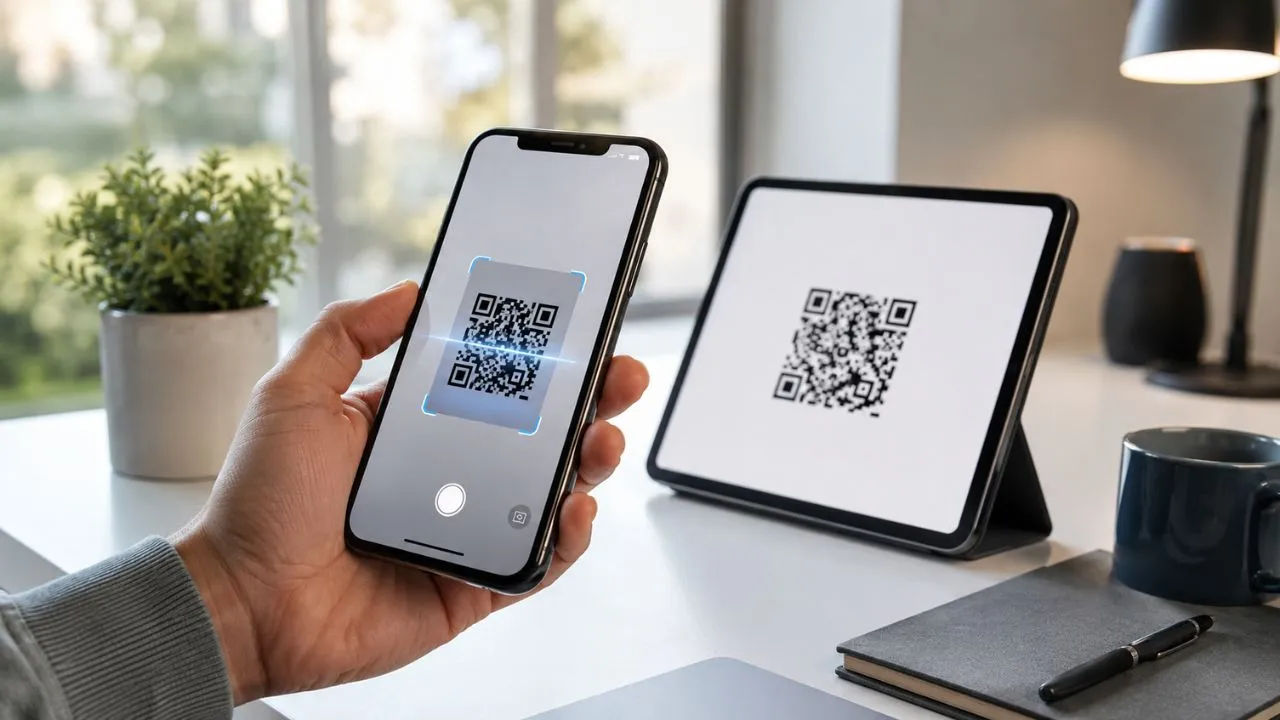
Many mobile providers issue a QR code when a customer purchases an eSIM plan. The code may arrive by email, appear in the provider’s app or be printed on a card supplied at a shop.
Open Settings, tap Cellular, and select Set Up Cellular or Add eSIM. Choose Use QR Code, point the iPhone camera towards the provider’s code and wait for the phone to recognise it.
Follow the instructions displayed on the screen and enter a confirmation code when your provider has supplied one. The iPhone should then download the cellular plan and begin the network activation process.
Do not share your eSIM QR code publicly or post a screenshot of it online. Many codes can only be used once, and exposing one may allow someone else to attempt to activate your mobile plan.
How to Add eSIM Without a QR Code
You may still be able to add an eSIM when your network provider has not issued a QR code. Some companies allow activation through their mobile app, website, customer-service team or automatic carrier activation system.
Open Settings, choose Cellular, and tap Add eSIM. Review the available choices, which may include transferring from another phone, using a provider app or entering the eSIM information manually.
For manual activation, you may need an SM-DP+ address, activation code and confirmation code. Enter every character carefully because an incorrect letter, number or symbol can prevent the plan from downloading.
When no suitable activation option appears, contact your provider and request instructions for your exact iPhone model. Apple cannot create or replace a mobile provider’s eSIM profile because the cellular account is managed by the provider.
How to Use eSIM Carrier Activation
With eSIM Carrier Activation, your provider digitally assigns a mobile plan to your iPhone. This may happen when you purchase the device or after you ask the provider to move your existing number to eSIM.
Turn on the iPhone and follow the setup instructions when the plan is already assigned to the device. A message may appear asking you to install or activate the cellular plan during the initial setup.
When the iPhone is already configured, you may receive a notification stating that a carrier cellular plan is ready to be installed. Open the notification and follow the instructions to add the plan.
Carrier Activation is only available through participating providers. Apple maintains a country-by-country list covering providers that offer automatic activation, Quick Transfer, QR codes and other eSIM setup methods.
How to Transfer eSIM From an Old iPhone
Apple’s eSIM Quick Transfer can move an eligible number from an old iPhone to a new one without requiring a new physical SIM. However, your mobile provider must support the transfer feature.
Keep both devices nearby, turn on Bluetooth and sign in to your Apple Account. Apple’s current guidance for its latest transfer process also recommends that both phones use a supported and up-to-date version of iOS.
On the new device, open Settings, tap Cellular, and select Set Up Cellular or Add eSIM. Choose the number offered on screen or tap Transfer From Nearby iPhone, then approve the transfer on the old device.
Wait for the mobile plan to activate before resetting or selling your previous phone. Once the number activates on the new iPhone, the corresponding SIM or eSIM on the previous device normally stops working.
How to Transfer eSIM From Android to iPhone
With iOS 26, some providers and supported smartphone manufacturers allow users to transfer an eSIM directly from Android to iPhone. Availability depends on the devices, software and mobile network involved.
On the iPhone, open Settings and select Set Up Cellular. When another SIM is already installed, go to Cellular, tap Add eSIM, and select Transfer from Android.
The iPhone may display a QR code for the Android phone to scan. Select the number you want to transfer on Android and follow the prompts on both devices until the activation is completed.
The old Android SIM is normally deactivated once the transfer succeeds. Make a test call and check cellular data before deleting information from the Android phone or giving it to someone else.
How to Convert a Physical SIM to eSIM
Some network providers allow customers to convert an existing physical SIM into an eSIM on the same iPhone. This can free the SIM tray for another line or remove the need to carry a removable card.
Open Settings, tap Cellular, and select the number associated with your physical SIM. Tap Convert to eSIM when the option appears and follow the onscreen instructions.
The conversion may take several minutes while your provider verifies the account and activates the digital profile. Once service appears on the eSIM, remove the physical card only when the instructions tell you to do so.
The Convert to eSIM button will not appear when your provider does not support direct conversion. In that situation, contact the company and request a new eSIM QR code or another approved activation method.
How to Install a Travel eSIM on iPhone
A travel eSIM provides mobile data in another country without requiring you to remove your main SIM. You can purchase one from a local provider or a worldwide eSIM service before or during your trip.
After purchasing a plan, add it through the provider’s app, an activation link or a QR code. You can also open Settings, choose Cellular, tap Add eSIM, and review available travel options where Apple supports that feature.
Once the plan is installed, go to Settings, Cellular, and Cellular Data. Select the travel eSIM as your data line while keeping your home number active for calls or messages when appropriate.
Check roaming settings carefully because leaving data roaming active on your home line may result in additional charges. Apple notes that using a travel plan and home eSIM together can still create roaming costs from the primary provider.
How to Label and Manage Multiple eSIMs
After activation, your iPhone may ask you to label each cellular plan. Common labels include Primary, Secondary, Business, Personal and Travel, but you can choose names that make sense to you.
Next, select the default line for voice calls and messages. You can also choose which number should be used for mobile data and whether the iPhone may switch cellular data between available plans.
When contacting someone, the iPhone generally remembers the line previously used for that person. You can change the selected number before making a call or sending a message when necessary.
To review your lines later, open Settings and tap Cellular. From this screen, you can turn plans on or off, change labels, select the data line and manage roaming options.
Can You Use a Physical SIM and eSIM Together?
Yes, many supported iPhone models allow you to use a physical nano-SIM and an eSIM together. This feature is known as Dual SIM and gives the phone access to two cellular plans.
You might use one line for personal calls and another for business, or keep your normal number active while using a travel eSIM for affordable data abroad. Both numbers can generally make and receive calls when properly configured.
To use plans from two different providers, the iPhone usually needs to be unlocked. Otherwise, both plans may need to come from the same network provider.
iPhone 13 models and later can also support two active eSIMs on compatible networks. Physical SIM support is not included on every model, particularly certain devices purchased in the United States.
How Long Does eSIM Activation Take?
An eSIM may activate within a few minutes when the provider’s systems and account details are ready. In some cases, the process can take longer while the provider verifies the number or completes a transfer.
Keep the iPhone connected to Wi-Fi during activation and avoid repeatedly deleting or reinstalling the plan. Interrupting the process may create additional account or provisioning problems.
When the setup finishes, the provider’s name and signal bars should appear in the status area. Test the connection by making a phone call, sending a message and temporarily turning off Wi-Fi to check mobile data.
Contact your provider when the eSIM remains on Activating, displays No Service or fails to connect after the expected activation period. Only the provider can confirm whether the plan is properly assigned to your account.
How to Check Whether Your eSIM Is Active
Open Settings and select Cellular. Look beneath the SIM or eSIM section and confirm that the newly added line appears with the correct label and phone number.
Tap the plan and make sure Turn On This Line is enabled. When the line is intended for internet access, return to the Cellular screen and select it under Cellular Data.
Turn off Wi-Fi and open a website or app to test the data connection. You can also place a call and send a message using the newly activated number.
When the line appears in Settings but does not connect, check your signal, account status and data settings. The eSIM may be installed correctly even when a separate provider or coverage problem prevents service.
What to Do When Add eSIM Is Missing
First, confirm that your iPhone model supports eSIM. The option may not appear on an older model or on certain devices produced for countries with different SIM configurations.
Next, update iOS by opening Settings, selecting General, and tapping Software Update. Restart the phone after installing the latest available update.
Check whether your iPhone is restricted to a particular network provider. Open Settings, go to General, tap About, and review the information beside Carrier Lock when you plan to use a different provider.
When the hardware and software are compatible but Add eSIM is still unavailable, contact your mobile provider. The company may need to enable eSIM on your account or provide a different activation method.
How to Fix eSIM Activation Problems
Begin by confirming that the iPhone is connected to Wi-Fi and running the latest supported version of iOS. Also make sure the mobile plan is active and supplied by a provider that supports eSIM.
Turn Airplane Mode on, wait several seconds and turn it off again. Open Settings, select Cellular, and turn the affected line off and back on when it is visible.
Restart the iPhone and check whether the provider’s name appears in the status area. You can also open Settings, choose General, and tap About to allow any available carrier settings update to appear.
When the problem continues, contact your provider with your phone number, account details, IMEI and EID available. Do not delete the eSIM unless your provider specifically instructs you to remove it, as you may need a replacement activation code.
Why Does an iPhone Show No Service After Adding eSIM?
A No Service message may mean that the activation has not finished, the selected line is turned off or the provider does not have coverage in your current location. Temporary network maintenance can also interrupt service.
Open Settings, tap Cellular, select the eSIM and confirm that Turn On This Line is active. Check that the correct plan is selected for cellular data and that roaming is enabled only when required.
Move to an area where the provider normally has coverage and restart the phone. Turning Airplane Mode on and off can force the iPhone to reconnect to the network.
Contact the provider when the account is active but service does not return. The company may need to refresh the eSIM profile, correct its network settings or issue a replacement plan.
Should You Delete an Old eSIM?
You can turn off an unused eSIM without deleting it. This may be the better option when you expect to use the plan again, such as a travel eSIM for a destination you visit regularly.
Deleting an eSIM removes the downloaded cellular profile from the iPhone. It does not necessarily cancel the mobile contract or stop billing, so you must contact the provider separately when you want to close the plan.
Avoid deleting your primary eSIM while troubleshooting unless the provider tells you to do so. A removed profile may require a new QR code or fresh activation from the company.
Before selling or giving away the iPhone, transfer your number to the new device and erase the old phone correctly. Confirm that calls and mobile data work on the replacement device before removing the previous eSIM.
Is eSIM Safe to Use on iPhone?
An eSIM uses the iPhone’s built-in hardware and is designed to provide cellular connectivity without a removable card. It is not automatically less secure than a traditional SIM.
Because an eSIM cannot be physically taken out of a stolen phone, removing the cellular connection may be more difficult for an unauthorised person. This can help services such as location tracking remain connected when the phone still has power and network coverage.
However, users must still protect their mobile accounts from phishing, weak passwords and fraudulent number-transfer requests. Use a strong provider account password and enable additional account security where available.
Never share an eSIM QR code, activation code or account verification message with an unknown person. Contact the mobile provider directly when someone claims that your number must be urgently transferred or reactivated.
Conclusion
Learning how to add eSIM to iPhone is usually simple once you know which activation method your network provider supports. Most users can begin through Settings, Cellular, and Add eSIM.
You may activate the plan by scanning a QR code, using carrier activation, transferring from another iPhone or entering the provider’s details manually. Some users can also convert a physical SIM to an eSIM.
After setup, label your lines and select the correct number for calls, messages and cellular data. Travellers should review roaming settings carefully to avoid unexpected charges on their home plan.
When activation fails, check Wi-Fi, update iOS, restart the device and contact the mobile provider. Avoid deleting the eSIM during troubleshooting unless the provider confirms that removal is necessary.
Frequently Asked Questions
How do I add an eSIM to my iPhone?
Open Settings, tap Cellular, select Add eSIM, and choose your provider’s activation method. You can scan a QR code, transfer a nearby number or follow carrier instructions.
Can I add an eSIM without a QR code?
Yes. Some providers support automatic carrier activation, app-based setup, Quick Transfer or manual entry. Contact your provider when none of these options appears.
Can I use an eSIM and physical SIM together?
Many compatible iPhones support one physical SIM and one eSIM at the same time. iPhone 13 and later models may also support two active eSIMs.
Why is my eSIM not activating?
The iPhone may lack Wi-Fi, need an iOS update or have incorrect provider information. Restart the phone and contact your network when the plan remains stuck on activation.
Will deleting an eSIM cancel my phone plan?
No. Removing an eSIM from your iPhone does not automatically cancel the mobile contract. Contact your provider separately to close the account or stop billing.