


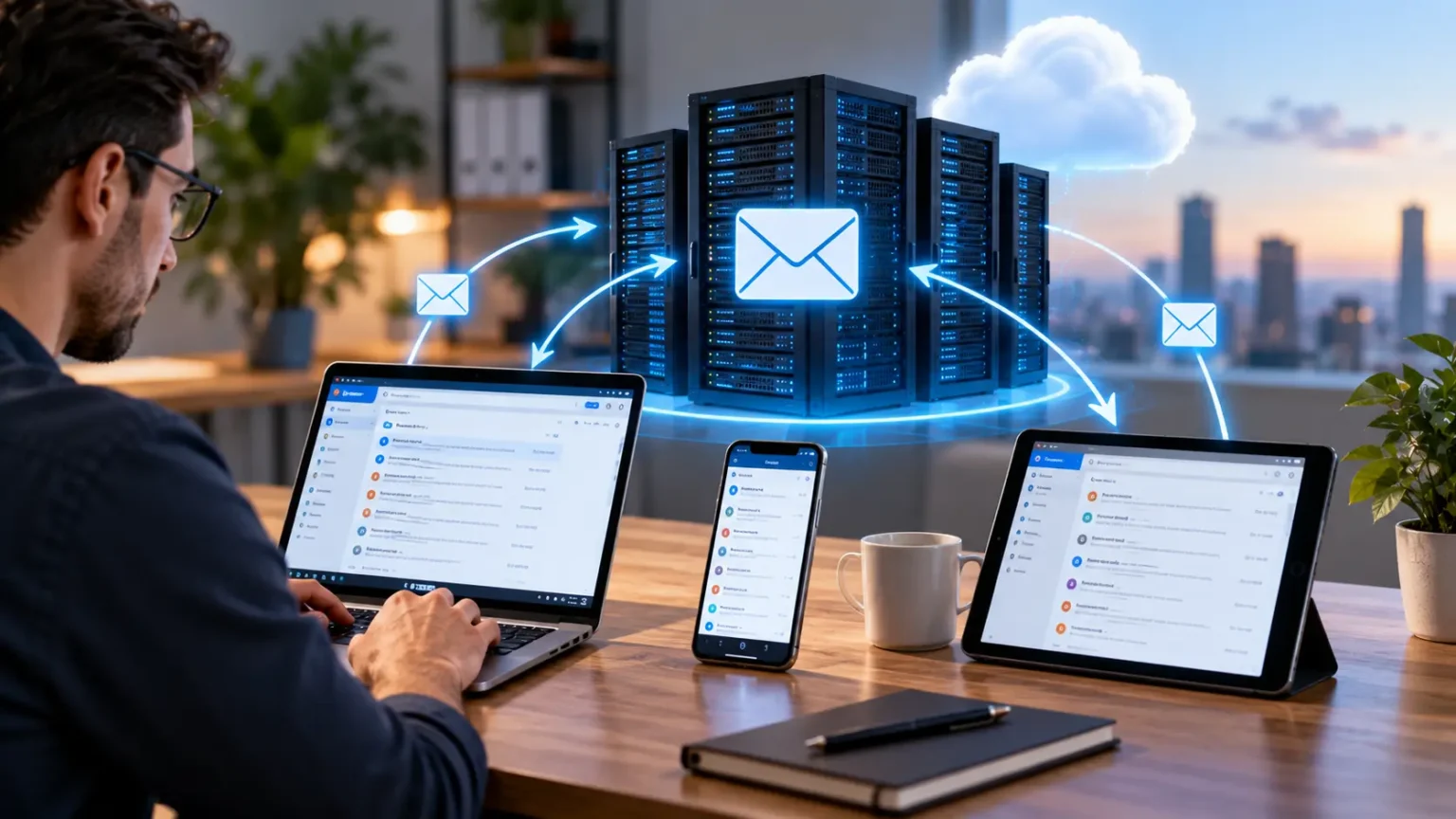
IMAP Server: How Email Sync Works & Why It Matters
An IMAP server is one of the key technologies working quietly behind modern email. When you open your inbox on a phone, reply from a laptop, archive the message on a tablet, and later see the same changes everywhere, IMAP is often responsible for keeping those devices synchronized. IMAP stands for Internet Message Access Protocol, and its main purpose is to let email applications access messages stored on a remote mail server. Instead of permanently downloading messages to only one device, IMAP generally keeps the primary mailbox on the server. That server-based approach makes email easier to manage across multiple devices, applications, and locations. It is especially valuable for people who check the same account throughout the day from different platforms.
Although webmail services often hide the technical details, IMAP remains important for traditional email clients such as Outlook, Apple Mail, Thunderbird, and many mobile mail applications. Businesses also rely on IMAP when employees connect hosted email accounts to desktop or smartphone software. The protocol synchronizes inboxes, folders, read status, deleted messages, drafts, and other mailbox changes between the client and the mail server. Modern implementations usually combine IMAP with encrypted connections and secure authentication methods to reduce the risk of unauthorized access. Understanding these basics can make email setup and troubleshooting much easier. It also helps explain why an incorrect IMAP server name, port, password, or security setting can suddenly stop incoming email from working.
IMAP is only one part of the email delivery process, so it is often confused with technologies such as POP3 and SMTP. IMAP primarily handles access to messages already stored in a mailbox, while SMTP is normally responsible for sending outgoing mail between clients and servers. POP3 can also retrieve incoming email, but it traditionally follows a download-oriented model that is less convenient for continuous synchronization across several devices. These differences matter when configuring an email account or diagnosing problems with receiving, sending, or syncing messages. This guide explains the IMAP protocol in practical terms without requiring advanced networking knowledge. By the end, you should understand how an IMAP server works, why synchronization matters, which settings are important, and how to solve common IMAP problems.
What Is an IMAP Server and What Does It Actually Do?
An IMAP server is a mail server that supports the Internet Message Access Protocol and allows email clients to interact with mailboxes stored remotely. When you configure an email application, the IMAP server is usually entered as the incoming mail server because it provides access to messages you have received. The server maintains the authoritative copy of your mailbox rather than relying entirely on files stored on your computer or phone. Your email client then communicates with that server to display messages, folders, attachments, flags, and other mailbox information. Changes made through the client can be sent back to the server and reflected elsewhere. This server-centered design is the foundation of IMAP email synchronization.
The easiest way to understand IMAP is to think of your email application as a window into a mailbox that lives online. The emails do not need to exist exclusively on the device you are currently using because the server retains the central mailbox data. When the application connects, it requests information about folders and messages and displays that information in a user-friendly interface. Some content may also be cached locally so messages can open faster or remain available when the device temporarily loses internet access. Once connectivity returns, the application can synchronize new changes with the IMAP server. This combination of remote storage and local caching gives modern email clients both flexibility and speed.
An IMAP server can manage much more than a simple inbox containing received messages. It can maintain folders such as Sent, Drafts, Trash, Archive, Spam, and custom folders created by the user. The server can also track whether a message has been read, starred, flagged, moved, copied, or marked for deletion depending on the capabilities of the email system. When one client updates this information, another client can retrieve the updated mailbox state during synchronization. This creates the familiar experience in which an email marked as read on a smartphone also appears read on a desktop. Without server-side synchronization, users would often need to repeat the same organizational tasks separately on every device.
IMAP is commonly used with personal domains, business email hosting, internet service provider accounts, and many other mailbox services. A provider may give customers a hostname such as imap.example.com or mail.example.com together with authentication and security settings. Large email platforms can also support IMAP access even when most customers normally use browser-based or dedicated mobile applications. The exact server address, authentication method, and permitted client access depend on the provider. Some services require IMAP to be enabled in account settings, while others configure it automatically. This is why copying generic IMAP settings from another provider frequently fails even when the email address and password themselves are correct.
The word server can refer both to software providing IMAP functionality and to the infrastructure on which that software runs. In a modern hosted environment, one user’s mailbox may actually be distributed across multiple systems rather than living on one physical server. From the perspective of an email client, however, the experience still looks like a connection to a defined IMAP service. The underlying provider handles storage, availability, backups, routing, and other infrastructure details behind that endpoint. This abstraction is useful because email applications do not need to understand every part of the provider’s architecture. They simply need compatible IMAP commands, valid authentication credentials, and a secure connection to the incoming mail service.
How IMAP Email Synchronization Works Across Devices
IMAP synchronization begins when an email client establishes a connection to the incoming mail server and authenticates the user. After successful authentication, the client can request a list of available mailboxes or folders and determine which messages are stored within them. The client may initially download only message headers, sender details, subjects, dates, and other metadata instead of fetching every complete message immediately. This approach reduces bandwidth consumption and allows large mailboxes to load more efficiently. Full message bodies or attachments can then be retrieved when the user opens them or when offline synchronization settings request them. The exact behavior depends on the email application, provider, and synchronization preferences.
Suppose you receive a new email while your laptop and phone are both connected to the same account through IMAP. The incoming message is accepted by the provider’s mail infrastructure and stored in your server-side mailbox. Your email clients periodically check or maintain a connection that allows them to discover the new message and update their local views. If you open the message on your phone, the client can update its status on the server to indicate that it has been read. The laptop later synchronizes that status and removes the unread indicator without requiring you to open the message again. This simple interaction illustrates why IMAP is so useful for multi-device email management.
Moving messages between folders follows a similar synchronization process. Imagine that you drag a customer email from the Inbox into a folder called Projects while working from a desktop email client. The client sends commands instructing the IMAP server to update the server-side mailbox accordingly. When your smartphone refreshes the account, it retrieves the updated folder state and displays the message inside Projects rather than the Inbox. Deleting, flagging, starring, and archiving messages can work in comparable ways depending on the email provider’s folder structure. Because these actions are synchronized through the server, organization stays relatively consistent regardless of which device you use. That consistency becomes increasingly valuable as a mailbox grows.
Many email clients use local caching to improve performance because continuously downloading every message directly from the server would feel slow. A local cache stores copies of selected messages and mailbox information on the device, making searches and message loading faster in many situations. Offline mode can also allow users to read previously synchronized messages and sometimes draft replies without an active internet connection. When the connection is restored, the email client communicates pending changes back to the IMAP server. Conflicts can occasionally occur when different devices change the same mailbox information before synchronization finishes. Modern clients generally handle these situations automatically, although temporary duplicate messages or unusual folder behavior may sometimes appear.
IMAP synchronization does not mean every device always stores an identical physical copy of the entire mailbox. One device might download complete messages for offline access, while another may retain only recent content or message headers until they are opened. Smartphones often limit local storage to conserve space, while desktop applications may keep larger offline caches. The server remains the main shared source that helps those different clients maintain a consistent mailbox state. Users can therefore customize local storage without abandoning the benefits of central synchronization. This flexibility is one of the reasons IMAP remains practical even when the same email account is accessed through very different devices, operating systems, and network conditions.
IMAP Server Settings, Ports, Encryption, and Authentication
Setting up an IMAP account usually requires several pieces of information provided by the email hosting company. The most important fields include the IMAP server hostname, username, password or authentication credential, incoming mail port, and connection security method. The username is commonly the complete email address, although some providers use a different account identifier. The server hostname may resemble imap.domain.com, mail.domain.com, or another provider-specific address. Small differences matter because entering the website domain instead of the correct mail hostname can prevent the application from connecting. Automatic account discovery often fills these settings in correctly, but manual configuration remains necessary for many custom-domain and business email accounts.
Port 993 is widely used for secure IMAP connections protected by SSL/TLS encryption from the beginning of the connection. Port 143 is the traditional IMAP port and can also support secure communication when the server and client upgrade the connection using a method such as STARTTLS. Which option you should select depends on the mail provider’s documented configuration. Modern email services generally expect encrypted connections because login credentials and private messages should not travel across networks in readable form. Choosing the wrong port or encryption type can produce connection errors even when the server address and password are correct. For that reason, troubleshooting should always compare every field with the provider’s current recommended IMAP settings.
Encryption protects data traveling between the email client and the mail server from being easily read by someone intercepting network traffic. TLS is the modern technology commonly used to create this protected connection, while the term SSL often remains visible in application interfaces for historical reasons. Secure IMAP does not automatically guarantee that every aspect of an email’s journey is encrypted in exactly the same way. It specifically helps protect communication between your client and the server you are connecting to. Other technologies handle message transport, storage security, and optional end-to-end encryption. Still, enabling the provider’s recommended secure IMAP connection is an essential baseline practice. Disabling encryption simply to bypass a configuration problem is usually a poor long-term solution.
Authentication methods have also evolved as email providers respond to account takeover and password theft. Traditional IMAP authentication often involved sending a username and password through an encrypted connection. Some modern providers now prefer OAuth-based authentication, which allows an email application to receive authorized access without permanently storing the user’s primary account password in the same traditional way. Accounts protected by multifactor authentication may sometimes require an app-specific password when an older email application cannot support the provider’s preferred login flow. Providers increasingly restrict basic authentication when stronger options are available. These changes can cause older applications to suddenly stop connecting even though the IMAP protocol itself remains supported.
Users should also distinguish authentication problems from synchronization problems because the symptoms can initially look similar. An authentication failure occurs when the server refuses to accept the client’s credentials or authorization method, preventing normal mailbox access. A synchronization problem can happen after a successful login when messages, folders, or status changes fail to update correctly. Repeated password prompts usually suggest authentication, account security, or saved-credential issues rather than a damaged inbox. Missing folders after a successful connection may instead involve subscriptions, folder mappings, caching, or provider-specific behavior. Understanding this distinction makes troubleshooting faster because changing the password repeatedly will not solve a folder synchronization problem that occurs after the account has already authenticated successfully.
IMAP vs POP3 vs SMTP: Understanding the Difference
IMAP and POP3 both relate to receiving email, but they were designed around different approaches to mailbox access. IMAP emphasizes server-side storage and synchronization, making it suitable when the same mailbox is accessed from multiple devices. POP3 traditionally downloads messages from the server to a local device and may optionally remove them from the server afterward. Some POP clients can leave copies online, but their synchronization abilities are generally more limited than IMAP’s folder-based model. This means actions performed on one POP-configured device may not appear consistently on another. For most users who switch frequently between phones, laptops, tablets, and webmail, IMAP provides a more natural experience.
POP3 can still be useful in certain circumstances, particularly when someone wants a simple local archive or uses one primary computer for email. Downloading messages may reduce dependence on long-term server storage if the configuration deletes mail from the server after retrieval. However, that behavior also creates risk because loss of the local device or mailbox files could mean losing the only readily available copy. POP3 is less suited to workflows where users want synchronized Sent, Drafts, Archive, and custom folders across multiple applications. It can also create confusion when messages appear downloaded on one device but missing from another. The best choice therefore depends on how the mailbox is actually used rather than on which protocol is universally better.
SMTP serves a different purpose and should not be treated as an alternative to IMAP. SMTP stands for Simple Mail Transfer Protocol and is primarily used to send outgoing email from clients and transfer messages between mail servers. When you press Send in an email application, the message usually goes through an SMTP service rather than the IMAP incoming mail server. This is why manual email configuration frequently asks for separate incoming and outgoing server settings. An account can theoretically connect successfully through IMAP while failing to send because its SMTP configuration is incorrect. Conversely, outgoing mail may work while incoming synchronization fails. Checking the two systems separately is therefore important when diagnosing email problems.
In a typical configuration, IMAP handles the synchronized mailbox while SMTP handles message submission. When you send an email, the client passes it to the configured SMTP server using authenticated and encrypted communication where supported. The provider processes the outgoing message and routes it toward the recipient’s mail server. A copy of the sent message may then appear in your Sent folder, which can be synchronized through IMAP to your other devices. This interaction can make SMTP and IMAP appear like one technology from the user’s perspective even though they perform different jobs. Understanding their separate roles becomes valuable whenever an email account partially works. Receiving but not sending usually points toward outgoing-server settings, while the reverse suggests an incoming-mail issue.
For modern everyday email, IMAP plus SMTP remains a common combination when using third-party clients with compatible mail services. However, some platforms also use proprietary synchronization technologies or application programming interfaces that can provide calendars, contacts, push notifications, and advanced mailbox features beyond traditional IMAP. An email client may therefore connect using IMAP for one provider and a different account type for another without the user noticing much difference. IMAP remains valuable because it is an open, widely understood protocol supported across many independent systems. That interoperability makes it especially useful for custom domains and providers that want customers to choose their preferred email application. Its importance is therefore closely connected to openness and compatibility.
Why IMAP Matters for Modern Email and Multiple Devices
The biggest practical advantage of IMAP is that it allows one mailbox to behave consistently across several devices. A business owner might begin the morning checking email on a smartphone, continue responding from a desktop at work, and review messages later from a laptop at home. With properly configured IMAP synchronization, the same folder organization and message status can follow that person throughout the day. An email archived in one location does not need to be manually archived again everywhere else. This saves time and reduces confusion about which device contains the most current version of the mailbox. For people who depend heavily on email, that consistency can significantly improve everyday productivity.
IMAP is particularly valuable for professional email accounts because employees often work from multiple locations and applications. Remote teams may access domain-based email through company laptops, personal phones, webmail, or temporary devices while traveling. Central server storage means the mailbox is not tied exclusively to a single machine sitting in an office. If one computer is replaced, the user can configure the account on the new device and synchronize server-side messages again. Local caches and unsynchronized data still need appropriate backup consideration, but central mailbox access simplifies device migration considerably. This flexibility supports the modern expectation that email should remain available wherever authorized users have a secure internet connection.
Server-side storage also makes mailbox management easier when users switch email applications. Someone can move from one compatible IMAP client to another without manually copying every server-stored folder between applications. After the new client authenticates, it can retrieve the existing mailbox structure and synchronize messages from the server. The exact appearance may differ because applications organize conversations, labels, and folders differently, but the core messages remain accessible. This portability reduces dependence on a single email program and gives users more control over their preferred tools. Businesses can benefit when changing hardware or standardizing employees on a new application. The ability to separate the mailbox from the client is one of IMAP’s most useful architectural advantages.
IMAP also matters because email storage is increasingly cloud-oriented rather than device-oriented. People expect important correspondence, invoices, customer conversations, receipts, and project information to remain accessible for years without remembering which computer originally downloaded them. A server-based mailbox fits that expectation because messages can remain centrally available subject to the provider’s storage limits and retention policies. Users can search or organize the same stored information from different devices instead of maintaining separate local collections. However, synchronization should not be confused with a complete backup strategy because deleting data from the server can synchronize that deletion elsewhere. Important organizations may therefore use dedicated email archiving or backup systems in addition to IMAP.
The protocol also supports user choice within the broader email ecosystem. A person with a compatible hosted mailbox can often select from several email clients rather than being forced to use only the provider’s web interface. This is particularly useful for users who manage several accounts from different domains and want them available within one application. IMAP can provide a common method for accessing those separate mailboxes even when the providers behind them are different. Standards-based access also makes migration and integration easier for many technical teams. Although newer proprietary synchronization methods can offer additional functionality, IMAP continues to solve the fundamental problem of remotely accessing and organizing email in a way that works across diverse software environments.
How to Set Up an IMAP Email Account Correctly
Before configuring IMAP, gather the correct settings from the organization or company hosting your mailbox. You will typically need your complete email address, account password or authorized login method, incoming IMAP server hostname, incoming port, encryption type, and outgoing SMTP information. Avoid assuming that a company’s website address is automatically the mail server address because hosting providers often use separate infrastructure. If the mailbox uses a custom business domain, its settings may come from an external email provider rather than the website host. Keeping the exact configuration available before you begin can prevent repeated trial and error. It also makes it easier to identify whether a failed setup comes from incorrect information or an application problem.
Most modern email applications first ask for your email address and attempt automatic configuration. If the provider publishes appropriate discovery information, the client may detect server names, ports, encryption options, and authentication methods without requiring manual entry. Automatic configuration is usually preferable when it works because it reduces mistakes and may select newer authentication options automatically. Manual configuration becomes necessary when discovery fails, the domain has unusual settings, or the administrator requires specific values. In that case, choose IMAP as the incoming account type rather than POP3 if synchronized server storage is the goal. Enter every field exactly as supplied, including whether the username must contain the full email address.
For a secure connection, select the provider’s recommended SSL/TLS or STARTTLS option and corresponding port. Port 993 is commonly associated with IMAP over an encrypted connection, while port 143 is frequently used where the connection can be upgraded with STARTTLS. Do not switch randomly between ports simply because an application reports an error because the encryption mode must match the server configuration. Some clients use labels such as SSL, TLS, SSL/TLS, or secure connection even when they refer to closely related modern encryption behavior. The provider’s instructions remain the best guide for matching these settings. Once the incoming connection succeeds, configure SMTP separately so the account can send messages as well as receive them.
After adding the account, allow time for the initial mailbox synchronization to finish. A large mailbox containing many years of messages and attachments may take noticeably longer than a new account with only a few emails. Some clients initially display folders quickly and then download older message content in the background. During this period, searches may seem incomplete or certain attachments may not be available offline yet. Avoid immediately removing and re-adding the account unless there is clear evidence the setup failed because doing so can restart synchronization from the beginning. Instead, check the client’s synchronization status, network connection, folder list, and recent messages before deciding whether troubleshooting is necessary.
Once synchronization finishes, review folder behavior on more than one device if you regularly use several clients. Send yourself a test message, mark it as read, move it into a custom folder, and confirm that those changes appear elsewhere. Check that sent messages are stored in the expected Sent folder and deleted items appear where your provider intends. Some email clients need folder mapping adjustments because one provider may call a folder Trash while another application expects Deleted Items. Small naming differences can sometimes create duplicate Sent or Draft folders without indicating a serious server problem. Testing common actions immediately after setup helps uncover these issues before the mailbox becomes difficult to organize.
Common IMAP Problems and How to Troubleshoot Them
One of the most common IMAP problems is a client that repeatedly asks for the account password. Although entering the wrong password is an obvious cause, the problem can also occur when a provider has disabled basic authentication or requires a newer login method. Multifactor authentication may require OAuth authorization or an app-specific password depending on the email service and application. Saved credentials can also become outdated after a password change, leaving the client stuck trying to authenticate with old information. Before resetting the entire mailbox, verify that you can sign in through the provider’s normal account portal. Then compare the client’s authentication method with the provider’s current requirements.
Connection errors often result from incorrect server names, ports, encryption settings, firewalls, or network restrictions. A typo in an IMAP hostname can prevent the client from locating the correct service even when all other account information is accurate. Similarly, selecting port 993 while disabling the required secure connection can create an incompatible configuration. Corporate networks may block certain outbound connections, while security software can occasionally interfere with encrypted mail traffic. Testing from another trusted network can help determine whether the problem is account-specific or network-related. Users should resist disabling encryption permanently as a shortcut because solving the underlying configuration issue provides a safer and more reliable fix.
Slow synchronization can have many causes, particularly when a mailbox contains tens of thousands of messages or large attachments. The client may be building a local index, downloading offline copies, or synchronizing deeply nested folders in the background. Limited internet bandwidth and high latency can make the process feel even slower. Reducing the amount of mail stored offline may improve performance on devices with limited storage, although the exact setting depends on the application. Archiving unnecessary mail according to organizational policies can also make very large active mailboxes easier to manage. If slowness appears suddenly rather than gradually, checking service status, local storage space, application updates, and network performance can narrow the cause.
Missing folders are another frequent complaint, and they do not always mean emails have been deleted. Some IMAP applications use folder subscriptions, meaning a folder can exist on the server without automatically appearing in the visible client list. Refreshing the folder list or subscribing to the missing mailbox can often make it appear again. Incorrect folder mapping can also cause messages to appear under unexpected names, particularly for Sent, Drafts, Spam, Archive, and Trash. Comparing the mailbox with webmail is useful because webmail usually provides a direct view of what the provider currently stores on the server. If the folder exists online but not in the client, the problem is more likely related to synchronization or application configuration.
Duplicate messages and repeated downloading can indicate cache corruption, unstable synchronization, incorrect folder configuration, or unusual interactions between multiple clients. Restarting the application and allowing it to finish synchronization can solve temporary problems, but persistent duplication deserves deeper investigation. Rebuilding a local cache may help when server-side messages appear correct in webmail but the desktop client displays inconsistent data. Users should back up important local-only information before deleting account data or profile files because not everything stored in an application is necessarily synchronized through IMAP. When problems affect many users simultaneously, the mail provider or administrator should be consulted. System-wide issues are rarely fixed by repeatedly changing individual passwords or reinstalling every client.
IMAP Security Best Practices for Personal and Business Email
A secure IMAP setup begins with encrypted connections and strong account authentication. Users should normally follow their provider’s recommended TLS settings rather than choosing unencrypted access for convenience. Encryption helps protect usernames, authentication data, and mailbox traffic as information travels between the client and server. A strong, unique account password remains important even when the connection itself is encrypted because encryption cannot protect an account whose credentials have already been stolen. Reusing the same password across multiple websites increases the chance that an unrelated data breach can compromise email. Password managers can make unique credentials easier to maintain without relying on predictable patterns.
Multifactor authentication provides another important layer of account protection when the email provider supports it. A stolen password alone becomes less useful to an attacker when another verification step is required before access is granted. Modern email clients may use OAuth or another authorization process that works more effectively with multifactor authentication than older basic password methods. Organizations should gradually move away from outdated authentication options when their mail environment supports stronger alternatives. Administrators may also restrict legacy protocols or clients that cannot meet modern security requirements. These changes sometimes create setup inconvenience, but they can significantly reduce exposure to automated password attacks and credential theft.
Keeping email applications and operating systems updated is also part of IMAP security. The protocol itself is only one component in a chain that includes the client, TLS libraries, authentication systems, device security, and the provider’s infrastructure. An outdated email client may contain vulnerabilities or lack support for the authentication and encryption standards required by the mail service. Updates can also fix synchronization bugs that users might otherwise misinterpret as server problems. Businesses should have a process for maintaining supported software versions rather than allowing employees to use indefinitely outdated clients. Removing accounts from lost or retired devices further reduces the number of places where mailbox access remains active.
Public and shared computers deserve additional caution because an IMAP client may cache significant portions of a mailbox locally. Signing out of webmail is relatively straightforward, but a configured desktop client may continue storing synchronized messages after the session ends. Users should therefore avoid permanently adding private accounts to machines they do not control. If temporary access is necessary, a trusted web interface may be preferable to configuring a full IMAP profile. Smartphones and laptops that contain synchronized business email should be protected with device passcodes, disk encryption, and remote-management controls where appropriate. Secure server access cannot compensate for an unlocked device containing an offline copy of sensitive correspondence.
Businesses should also think beyond individual logins and consider retention, backup, auditing, and account lifecycle management. When an employee leaves, administrators need a clear process for disabling access, preserving required records, and transferring business communications where legally and operationally appropriate. IMAP synchronization alone does not provide a complete backup because accidental or malicious deletion can propagate from the server to connected devices. Dedicated backup or archiving systems may therefore be appropriate for organizations with compliance, legal, or continuity requirements. Administrators should also monitor unusual login activity when their platform provides that capability. Good email security combines secure IMAP configuration with broader identity, device, storage, and organizational controls.
Frequently Asked Questions About IMAP Servers
What is an IMAP server used for?
An IMAP server stores and manages email messages so an email client can access and synchronize the same mailbox across multiple devices. It can keep folders, read status, deleted messages, flags, drafts, and other mailbox changes consistent between connected clients.
What is the standard IMAP port?
Port 993 is commonly used for IMAP connections secured with SSL/TLS from the start. Port 143 is the traditional IMAP port and may also be used securely when the client and server establish encryption through STARTTLS.
Is IMAP better than POP3?
IMAP is generally more convenient for users who check email from multiple devices because it keeps the main mailbox on the server and synchronizes changes. POP3 can still be useful for certain download-focused or local-storage workflows, so the better option depends on how the account will be used.
Why is my IMAP email not syncing?
Common causes include an incorrect server address, wrong port or encryption setting, authentication problems, internet connectivity issues, an outdated email client, or a large mailbox that has not finished synchronizing. Comparing the account with webmail can help determine whether the problem is on the server or only inside the email application.
Is IMAP used for sending email?
No, IMAP is primarily used to access and synchronize incoming and stored mailbox content. Outgoing messages are normally submitted through SMTP, which is why email applications often require separate IMAP and SMTP server settings.