


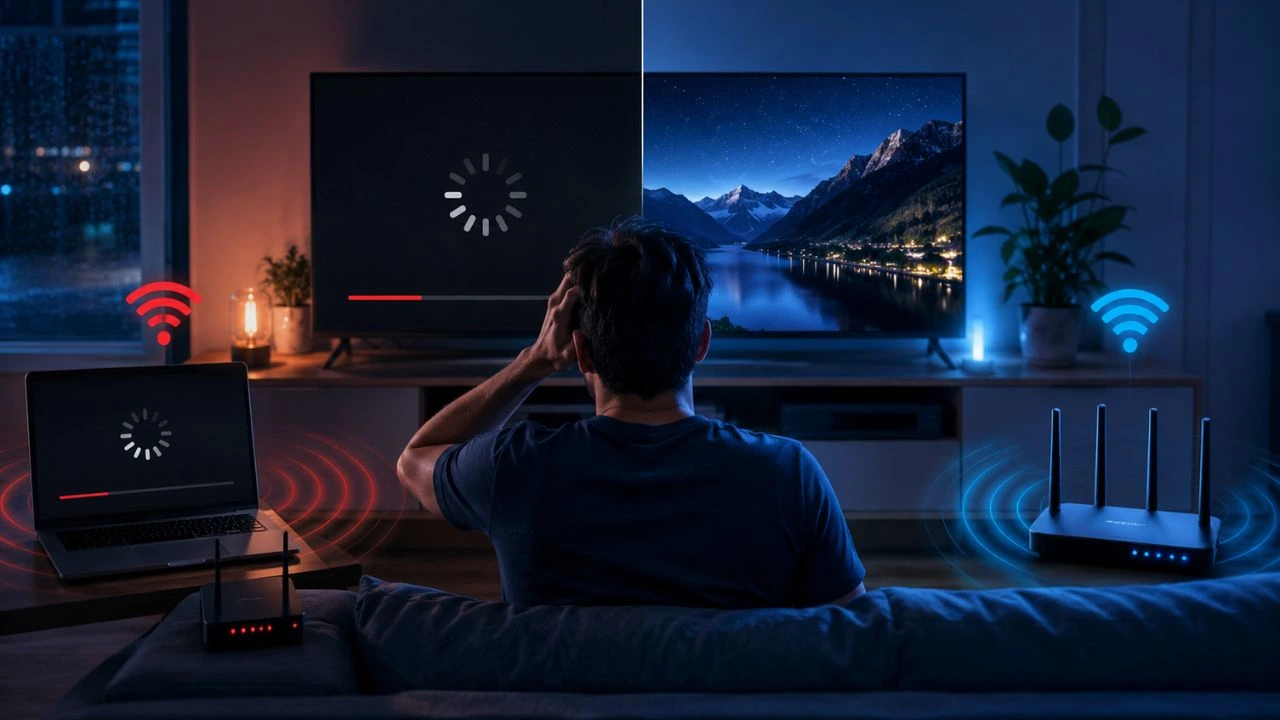
Buffering: Stop Streaming Interruptions and Enjoy Smoother Video
Buffering is one of the most frustrating problems people experience while watching online videos. A movie may suddenly pause, a loading circle may appear, and the content may take several seconds to restart. The same problem can affect live events, music, video calls, online classes and cloud gaming, making otherwise useful digital services difficult to enjoy.
The buffering process itself is not necessarily a technical failure. Streaming applications temporarily store part of a video or audio file before playing it. This stored content creates a small safety cushion that allows playback to continue when the internet connection briefly slows down. Problems begin when playback consumes data faster than the application can download and store it.
Slow internet speed is a common cause, but it is not the only possible explanation. Weak Wi-Fi, network congestion, high latency, outdated equipment, device limitations and overloaded streaming servers can also interrupt playback. A connection may even show a high download speed during a test while producing poor streaming performance in the room where the television or mobile device is located.
This guide explains buffering meaning, common causes and practical troubleshooting methods. You will learn how to check your connection, improve wireless coverage, adjust video quality and identify device or service problems. The objective is to find the actual source of the interruption before spending money on a faster internet package or new streaming equipment.
What Is Buffering?
Buffering is the process of downloading and temporarily storing a portion of digital content before it is played. The stored information is held in a buffer, which is a reserved area of device memory. Video players use this data to continue showing content while the next section of the stream is being downloaded from the internet.
When you select a video, the application normally waits until it has collected enough information to begin playback. It continues downloading additional segments while you watch. If the incoming data arrives consistently faster than the video consumes it, the content plays smoothly and the viewer may never notice that buffering is taking place.
A visible buffering interruption happens when the stored content runs out before the next section arrives. The player pauses because it does not have enough information to continue displaying the video correctly. MDN describes a media element as buffering when it cannot continue playback because it is still loading the data required to proceed.
This means buffering is both a helpful process and a sign of insufficient data delivery. A healthy buffer protects playback from brief changes in connection quality. Repeated pauses indicate that the player cannot rebuild its stored supply quickly enough, requiring the user to examine internet speed, network stability, video quality and device performance.
How Buffering Works
Streaming services divide videos into smaller sections rather than sending the entire file before playback begins. The player downloads several sections, stores them temporarily and begins displaying the content. More sections continue arriving in the background, creating a moving supply of video that stays slightly ahead of the viewer’s current position.
The amount of stored video is sometimes visible as a lighter bar beyond the current playback position. That section represents content that has already been downloaded and can normally play without another internet request. Web media tools track these buffered time ranges so applications can understand which portions are ready for uninterrupted playback.
Streaming platforms also use adaptive bitrate technology. The player can move between different video quality levels according to available network conditions. When bandwidth falls, it may select a lower-resolution stream that requires less data. Apple explains that its HLS adaptive streaming technology dynamically changes quality to support smoother playback with fewer interruptions.
If the connection becomes too slow or unstable, lowering the quality may not be enough. The stored sections eventually finish, and the player pauses to rebuild its buffer. Playback resumes once sufficient content has arrived, but the cycle may repeat if network capacity remains below the amount required by the selected video stream.
Buffering vs Loading and Lagging
Loading describes the broader process of retrieving information before an application or webpage becomes available. A loading screen may appear while an app signs in, opens a menu or retrieves a video. Buffering is more specific because it involves temporarily storing media data before or during audio and video playback.
Lagging usually describes a delayed response between a user’s action and what happens on the screen. It commonly affects multiplayer games, video calls and remote desktops. A game may react late even though it does not display a loading circle. This delay is often associated with high latency rather than insufficient video data.
Buffering and lagging can occur together, but they are not identical. A live stream may pause because its buffer has emptied, while its chat or controls may respond slowly because of network latency. Treating every delay as a speed problem can lead users to overlook routing, wireless stability or device processing limitations.
Freezing is another related symptom. An app may stop responding because of insufficient memory, corrupted temporary data or a software problem rather than the internet connection. Testing another video, application and device can help determine whether the problem is media buffering, general network lag or a malfunctioning application.
Why Videos Keep Buffering
A video keeps buffering when the player repeatedly uses stored content faster than the network replaces it. This can happen when the available download rate is lower than the video bitrate. Higher resolutions contain more visual information, so 4K content generally requires a more stable connection than standard-definition or HD video.
Connection speed may also change during playback. A speed test provides a measurement for a limited moment, but household traffic and wireless conditions continue changing. Another person may begin downloading a game, uploading files or joining a video meeting, reducing the capacity available to the streaming device.
Network latency can delay the arrival of new video sections. Cloudflare notes that server distance and the time required for data packets to travel can contribute to streaming delay. Latency alone may not cause every interruption, but it can slow requests and make it harder for a small buffer to recover from changing network conditions.
The source of the content may also be experiencing problems. Streaming servers, content delivery networks or internet routes can become overloaded or unavailable. When only one platform or programme keeps buffering while other services work correctly, the issue may be closer to the content provider than the user’s home network.
Internet Speed and Buffering
Video quality has a direct relationship with the amount of data that must reach the player. A higher-resolution stream usually requires a stronger sustained download rate. YouTube currently recommends approximately 5 Mbps for HD 1080p playback and 20 Mbps for 4K video under its general playback guidance.
Netflix provides different current recommendations, including at least 3 Mbps for 720p HD and 15 Mbps for 4K UHD. These numbers illustrate that requirements vary according to the platform, compression method and selected content. Users should therefore compare their connection with the guidance provided by the service they are actually using.
The speed reaching a streaming device may be lower than the speed advertised by the internet provider. The package speed normally describes the connection delivered to the modem under defined conditions. Wi-Fi distance, interference, old hardware and competing traffic can reduce the usable performance received by a television, laptop or phone.
Run a speed test near the affected device rather than standing beside the router. Repeat the test when buffering normally occurs, especially during busy evening hours. Compare the result with a wired connection and another device. These comparisons can reveal whether the limitation comes from the internet service, wireless network or streaming hardware.
Buffering Despite Fast Internet
Buffering despite fast internet often occurs because total bandwidth is only one part of streaming performance. A speed test may select a nearby server with an excellent route, while the video platform uses a different destination. Congestion or poor routing between the user and that streaming service may still interrupt content.
Wi-Fi quality can also explain the difference. A fast package may deliver strong performance to the router but an unstable connection to a television in another room. Walls, floors, metal objects and neighbouring networks can weaken wireless signals and cause repeated transmissions, reducing the consistency needed for smooth video.
Large uploads may create another hidden problem. Cloud backups, security cameras and file sharing can fill the outgoing connection, causing requests and acknowledgements to wait. The download speed may appear sufficient, yet the network becomes less responsive because important traffic is queued behind the ongoing upload.
The device may be responsible when internet tests remain strong. Limited memory, high processor usage, outdated apps or damaged cache data can affect playback. YouTube recommends steps such as updating the browser, closing unnecessary tabs, restarting the device and clearing the app cache when videos continue buffering or loading incorrectly.
Wi-Fi Buffering Problems
Weak Wi-Fi is one of the most common reasons streaming works in one room but fails in another. Signal strength decreases as the device moves away from the router. Thick walls, concrete floors, mirrors and metal cabinets can further reduce coverage, causing the streaming device to receive data inconsistently.
Router placement should be central, elevated and open whenever possible. Avoid hiding the router inside furniture or placing it behind a television. Moving it a short distance can sometimes improve coverage considerably. YouTube also recommends keeping a television within router range and reducing interference when playback continues buffering.
Wireless congestion occurs when many nearby networks use overlapping channels. Apartments and densely populated areas may contain dozens of active routers. Modern routers can often select channels automatically, but the chosen channel may not always remain suitable. Restarting or manually reviewing channel settings can improve performance in persistently crowded environments.
A mesh Wi-Fi system or additional access point may help in a larger home. These devices should be positioned where they still receive a strong connection, not inside the existing dead zone. For a fixed smart TV or gaming device, an Ethernet connection usually provides a more stable test and may offer the most dependable long-term solution.
Too Many Connected Devices
Every active device shares the internet capacity available to the household or workplace. Phones, computers, security cameras, smart speakers, televisions and game consoles may transfer data even when they are not being used directly. Automatic updates and cloud synchronisation can consume significant bandwidth without displaying an obvious warning.
Simultaneous high-quality streams create greater demand. One 4K television may play smoothly on a particular connection, but several televisions, video calls and downloads can exceed the available capacity. The streaming application may respond by lowering picture quality or pausing while it gathers enough data to continue.
Check the router’s connected-device list to identify unexpected equipment. Remove devices that no longer need access and change the Wi-Fi password when unknown connections appear. Pause large downloads and backups during important live events. Testing with fewer active devices can quickly reveal whether shared bandwidth is creating the problem.
Quality-of-service settings may allow a router to prioritise streaming, video calls or gaming traffic. These settings can be helpful when several users share a limited connection, but they must be configured correctly. Incorrect bandwidth values or excessive prioritisation can create new bottlenecks, so compare performance before and after each change.
Device and App Problems
Streaming devices need enough memory and processing power to decode video and run the application. An older smart TV may struggle with newer app versions or high-resolution content. Closing unused applications and restarting the device can release temporary resources and resolve playback issues without changing the network.
Applications also store temporary cache data to improve loading. Over time, damaged or outdated cache files may interfere with playback. Clearing the cache, signing out and reopening the application can resolve some problems. YouTube’s official troubleshooting guidance recommends clearing the app cache and testing the video again on supported mobile devices.
Software updates can contain performance improvements, security patches and compatibility fixes. Update the streaming app, device operating system and web browser before conducting advanced troubleshooting. Netflix similarly recommends restarting the device and home network when content loads slowly or continues buffering.
Storage limitations may also affect some streaming devices. Remove unused apps or downloaded files when the device is nearly full. Test the same account and content on another supported device. When the second device plays normally on the same network, the original hardware or software is probably contributing to the interruptions.
YouTube Buffering
YouTube buffering may result from connection speed, browser settings, app cache or the selected video resolution. Begin by switching the quality from 4K or 1080p to a lower setting. If the lower resolution plays normally, the connection may not be sustaining the bitrate required for the original quality.
Close unnecessary browser tabs and applications before playing the video again. Video editing software, downloads and cloud storage tools can use both network and processor resources. Update the browser and restart it. YouTube specifically recommends closing extra tabs, using an updated browser and restarting the device during playback troubleshooting.
On a phone or tablet, switch between Wi-Fi and mobile data to compare connections. When the video works on mobile data but not Wi-Fi, focus on the router and home network. When both connections fail, test another video and device to determine whether the issue is linked to the application or account.
Live YouTube content can behave differently from recorded videos. Lower live-stream delay gives the player less stored content to protect against connection changes, increasing the risk of interruptions. YouTube explains that reducing broadcast delay also reduces the available buffer and may make playback interruptions more likely.
TV Buffering
Smart TV buffering is often caused by weak wireless coverage, outdated software or limited device performance. Televisions are commonly placed against walls, inside cabinets or far from the router. These locations may produce a weaker Wi-Fi connection than the one received by a phone used for testing nearby.
Open the television’s network settings and run any built-in connection test. Then test the same service on another device in the same room. When the phone or laptop works but the TV continues buffering, restart the television, update its system software and reinstall or refresh the affected application.
Lower the playback quality temporarily. A visible improvement suggests the television is not receiving or processing enough data for the higher resolution. Confirm that the device and any connected streaming stick, receiver or cable support the selected format, particularly when attempting to play 4K or HDR content.
Connect the television through Ethernet where the required port and cable route are available. If direct cabling is impractical, consider a properly installed mesh access point. Avoid relying on a low-quality wireless extender placed inside a dead zone because it may repeat an already weak and unstable signal.
Mobile Buffering
Mobile buffering can occur on Wi-Fi or cellular networks. Cellular performance changes according to signal strength, tower congestion and movement between coverage areas. A stream may play normally in one location but pause repeatedly inside a building, vehicle or crowded public space.
Turn airplane mode on briefly and then reconnect to refresh the cellular connection. Move to an area with stronger reception and lower the video quality. High-resolution streaming may use considerable mobile data, so adaptive or data-saving settings can provide more reliable playback while reducing consumption.
On Wi-Fi, move closer to the router and compare another network. Clear the streaming app cache and install available updates. Restarting the phone can stop background processes that are consuming memory, processor capacity or bandwidth without requiring a complete application reinstall.
A virtual private network may change the traffic route and add distance between the device and streaming service. Disconnect it temporarily for testing, provided doing so is appropriate for the network being used. When playback immediately improves, try another VPN location or review whether the service is limiting streaming performance.
Live Stream Buffering
Live streaming is more sensitive than recorded video because the player cannot download a large portion of future content. It can store only the content that has already been created and transmitted. A larger buffer improves stability, but it also increases the delay between the real event and what the viewer sees.
Low-latency modes reduce that delay by keeping less content in reserve. The trade-off is a greater chance of interruptions when the connection changes. Apple notes that traditional HLS has generally favoured reliability over latency, while low-latency HLS introduces additional methods to reduce delay while preserving scalable delivery.
Viewers can improve live playback by selecting a lower quality, closing competing applications and using Ethernet. Avoid skipping repeatedly along the live timeline because the player may need to request new segments. Returning to the default live position can sometimes allow the stream to rebuild a more reliable buffer.
Broadcasters should monitor upload speed, encoder performance and stream health. Upload capacity should remain above the selected bitrate rather than matching it exactly. YouTube recommends testing outbound bandwidth and leaving additional capacity when preparing a live stream, helping the connection handle normal performance changes.
Test the Buffering Problem
Start by identifying the scope of the issue. Check whether one video, one application or every streaming service is affected. Test another device on the same network and the original device on another connection. These comparisons divide the problem into content, application, device and network categories.
Run an internet speed test beside the affected device. Record download speed, upload speed, latency and jitter where available. Repeat the test several times because one measurement may miss temporary congestion. Compare results during normal hours and the period when buffering most often occurs.
Test through Ethernet when possible. A stable wired result combined with poor Wi-Fi performance points toward wireless coverage or interference. When wired playback also buffers, restart the modem and router, inspect the internet service and compare different streaming platforms before replacing wireless equipment.
Keep a simple record of the changes you make. Change one setting, replay the same content and note the result. Avoid restarting everything, changing video quality and replacing cables simultaneously. A controlled process reveals which action solved the problem and makes recurring interruptions easier to diagnose.
How to Stop Buffering
Begin by restarting the streaming device, modem and router. Reopen the application and replay the same content. This basic step can clear temporary software faults, refresh network connections and remove stuck processes. It should not be the only response to recurring problems, but it provides a useful starting point.
Lower the video resolution from 4K to 1080p, or from 1080p to 720p. The reduced stream requires less sustained bandwidth and may rebuild its buffer more quickly. Netflix and YouTube both use changing quality levels to match different network conditions and provide service-specific connection recommendations.
Reduce competing traffic by pausing downloads, cloud backups and other streams. Move closer to the router or connect with Ethernet. Update the app, browser and device software. Clear temporary cache data when the platform or operating system provides a safe method for doing so.
Contact the internet provider when several devices and services buffer over a stable wired connection. Share speed tests taken at different times and explain whether the issue becomes worse during peak hours. Contact the streaming service instead when only its content fails and competing platforms work correctly on the same devices.
Prevent Future Buffering
Place the router where it can provide balanced coverage throughout the property. Keep it elevated and away from major obstructions. Review connected devices periodically and remove equipment that is no longer used. Good wireless planning is more effective than repeatedly restarting a router hidden in an unsuitable location.
Choose an internet package based on total household usage, not the needs of one screen. Consider how many people may stream, call, game or download simultaneously. Leave additional capacity for temporary demand and application updates rather than selecting a package that only meets the minimum requirement of one platform.
Keep devices and applications updated. Replace equipment that no longer receives security or compatibility updates. A modern router cannot correct every service problem, but supported hardware generally offers stronger wireless management, better processing and improved handling of multiple active devices.
Monitor patterns whenever interruptions return. Note the affected time, device, platform and connection type. Repeated evening problems may indicate congestion, while one-room issues suggest Wi-Fi coverage. A consistent troubleshooting record turns a vague complaint into evidence that can guide equipment changes or provider support.
Conclusion: Fix Buffering with the Right Solution
Buffering is the temporary storage process that helps streaming media play smoothly. Visible interruptions occur when the player consumes its stored content faster than new data arrives. The underlying reason may involve internet capacity, Wi-Fi stability, device performance, network latency or the streaming platform.
Start by checking whether the issue affects one video, one device or the complete network. Run a speed test near the affected screen, compare wired and wireless playback and reduce the video quality. These steps can identify the source without requiring immediate equipment purchases.
Apply a solution that matches the evidence. Improve router placement for weak Wi-Fi, pause competing downloads during congestion and update an app when one device is affected. Select a lower resolution when the available connection cannot consistently support the preferred video quality.
Continue observing performance after the interruption stops. Streaming requirements and household traffic can change as new devices are added. Maintaining updated equipment, suitable internet capacity and strong wireless coverage can reduce future buffering and provide a smoother viewing experience.
Frequently Asked Questions
What does buffering mean?
Buffering means temporarily downloading and storing part of a video or audio stream before it plays. Playback pauses when the stored content runs out before more data arrives.
Why does my video keep buffering?
Your video may keep buffering because of slow internet, weak Wi-Fi, network congestion, high video quality or device problems. The streaming server may also be experiencing delays.
Why am I buffering with fast internet?
A fast internet package does not guarantee strong Wi-Fi or stable routing. Congestion, interference, uploads, device limitations and service problems can cause buffering despite high speed-test results.
How can I stop buffering on my TV?
Restart the TV and router, update the streaming app, lower the video quality and move the router closer. Use an Ethernet connection when possible for more consistent performance.
Does a better router stop buffering?
A better router may help when weak coverage, congestion or outdated hardware causes the problem. It will not fix slow internet service, overloaded streaming servers or poor external routing.